
Add Watermark in PDF files online using our free PDF watermark tool. Easily insert text or image watermarks into your documents, adjust their position, and customize their appearance. No software installation or account registration is required
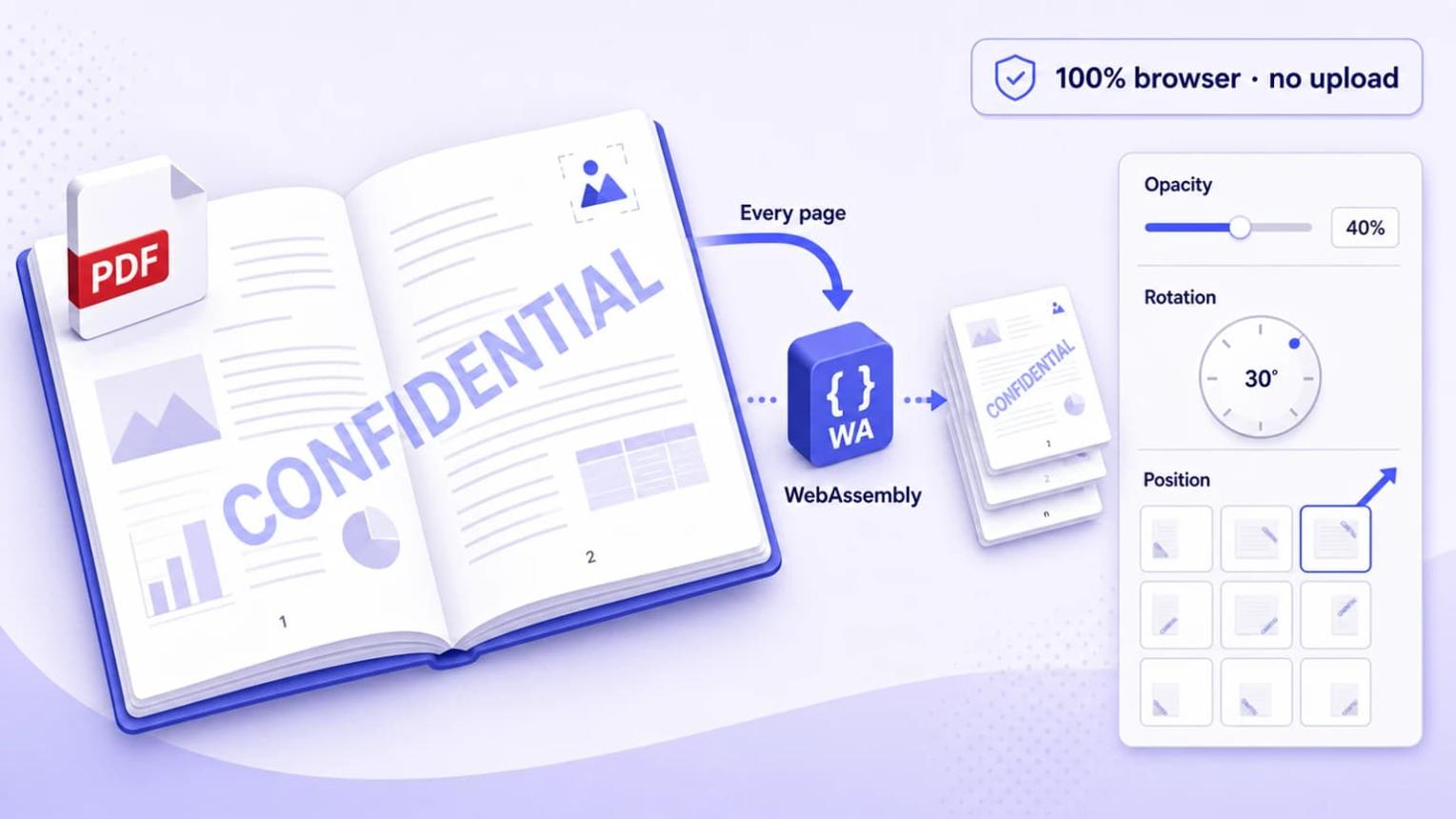
Click or drag and drop your PDF file into the dropzone to get started.
Adjust the watermark text, font size, rotation, opacity, and custom text color.
Review your changes real-time on the inline document canvas before finalizing.
Click the button to process and download your updated watermarked PDF instantly.
How to Add Watermark in PDF Online
Adding a watermark to a PDF document is a convenient way to identify, label, and personalize digital files. Whether you are preparing business reports, sharing confidential documents, or distributing digital materials, a watermark can communicate useful information to readers.Digiplustal makes everyday PDF tasks simple with free browser-based tools. You can add watermarks to PDF documents without complicated software.
Our goal is to provide convenient online utilities that help students, professionals, and everyday users manage their digital documents more efficiently.
How to Use the PDF Watermark Tool
Upload Your PDF
Select the PDF document you want to add a watermark to.
Choose Your Watermark
Enter your watermark text and select the available customization options.
Customize the Position
Adjust the watermark placement and appearance using the available settings.
Apply and Download
Apply the watermark and download your updated PDF document.
Why Add Watermark in PDF Documents?
Watermarks are useful for identifying documents and communicating information about their status or ownership. **Document identification:** Add a company name, personal name, or project label to help identify your PDF files. **Confidential documents:** A watermark such as CONFIDENTIAL can remind readers that a document contains sensitive information. However, a watermark alone does not prevent copying or unauthorized access. **Draft documents:** Use a DRAFT watermark to indicate that a document is still being reviewed or is not yet finalized. **Business branding:** Add a business name or logo to make reports, proposals, and other documents easier to recognize. **Digital materials:** Watermarks can help label presentations, guides, and other digital resources before sharing them. ## Customize Your PDF Watermark The appearance and position of a watermark can affect how easily people read your document. Choose a suitable placement that does not hide important text, images, or information. For example, a light watermark placed in the background can identify a document while keeping the main content readable. A centered watermark may be useful for draft documents or internal materials. Always preview your finished PDF to make sure the watermark looks appropriate across different pages. ## Is It Free to Add Watermark in PDF? Yes! Digiplustal provides a free online PDF watermarking tool. You can access it directly through your web browser without installing desktop software or creating an account. The tool is designed to make everyday PDF editing easier for students, professionals, and personal users. ## Tips for Creating Better PDF Watermarks Before processing your document, consider these useful tips: - Keep watermark text short and easy to understand. - Choose a position that does not cover important content. - Use a suitable size so the watermark remains readable. - Preview the final document before sharing it. - Keep an original copy of your PDF before making changes. A carefully placed watermark can improve document identification and presentation while keeping the original information easy to read.Helpful PDF Resources
Explore more free tools in our online PDF tools collection. You can also visit the Digiplustal homepage to discover other useful online tools.
For additional information about working with PDF documents, read Adobe's guide to adding watermarks to PDFs .
Are my files secure when adding a watermark? +
Yes, 100%. All PDF processing and watermarking occur directly inside your browser. Your documents are never uploaded to any external servers.
Can I change the watermark color and opacity? +
Yes. You can use the color picker to select any custom text color and adjust the slider to set your preferred transparency level in real-time.
Will the watermark be applied to all pages? +
Yes, the tool automatically stamps your custom watermark across every page of your uploaded PDF document.